VoiceThread Tutorial for Students
| Site: | Learnbps |
| Class: | Moodle Template Exchange |
| Book: | VoiceThread Tutorial for Students |
| Printed by: | Guest user |
| Date: | Tuesday, March 24, 2026, 2:47 AM |
Description
Book Module
Table of contents
- VoiceThread
- Creating
- How do I create a VoiceThread?
- How do I upload files from my computer to a VoiceThread?
- What is the grey box that appears when I'm uploading a file?
- How do I cancel a file from uploading?
- What types of files can I upload into a VoiceThread?
- - File Type Basics
- - Images
- - Audio
- - Video
- - Documents
- - Presentations
- How do I import media from one VoiceThread I've created into another?
- How do I import media from Flickr into a VoiceThread?
- How do I import a file from a website into a VoiceThread?
- How can I upload a YouTube video into my VoiceThread?
- How do I title and describe a VoiceThread?
- Editing
- Viewing
- Commenting
- Doodling
VoiceThread
What is VoiceThread
Creating
Creating the central media in a VoiceThread involves importing or uploading media from a variety of sources including images from the New York Public Library, Flickr's Creative-Commons archive, files from your own computer, and even slides from the VoiceThreads you already created! In this section, you'll find answers to the most common questions about creating a VoiceThread. For an overview of creating a VoiceThread, take a look at this tutorial:
How do I create a VoiceThread?
You must have a VoiceThread account and be signed in to create a VoiceThread. Once you're signed in, follow these steps:
- Click on the Create tab at the top of the page.
- Click the Upload button.
- Choose the source of your media.
- Select your file(s).
VoiceThread will save your progress as you work on creating your VoiceThreads, so there is no need to remember to click a save button. Once you are done creating your VoiceThread, you can go to your MyVoice page to see your newly created VoiceThread. Learn more about uploading
How do I upload files from my computer to a VoiceThread?
 While in the Create/Edit mode for a VoiceThread, follow these steps:
- Click the 1. Upload button.
- Click My Computer.
- Choose the file(s) you wish to upload.
- Wait for the file(s) to upload
Your images are saved automatically. Please note that you can select and upload multiple files at once. With Windows, hold down the Ctrl key while clicking on each desired file, and in Mac OS X, hold down the Command key while clicking on each desired file.
What is the grey box that appears when I'm uploading a file?
 This box shows the progress of the upload process for the files you selected. Once your file has finished uploading, the slide(s) will appear in place of this box.
How do I cancel a file from uploading?
Click the Cancel button that appears below the yellow upload progress bar.
What types of files can I upload into a VoiceThread?
VoiceThread accepts many photo, image, and document file types, and we're always adding more. Please see File types accepted for more information about the file types that work best in VoiceThread.
File Types Accepted (images, video, PowerPoint, PDF, documents, music)
VoiceThread allows you to have conversations around almost any type of file: images, videos, documents, and presentations; however, it is a big, wild world of technological standards out there, and there will be times when you run into a file that just doesn't work the way you expect. Here is a list of our currently supported file types and advice about what to do when one of them doesn't seem to work.
- File Type Basics
- Size. No single file can be larger than 25MB. If your presentation or video is larger than that, try breaking it up into smaller files and uploading them individually.
- Originals. If you have a Pro or Educator account, VoiceThread will save and store your original file so that you can allow others to download the original file. If the owner of the VoiceThread allows it, you can right-click (or control-click) on any slide within a VoiceThread to download the original document and save it on your computer.
- Import from a link. If you enter the direct URL of a file, you can import it right into a VoiceThread, but the link must be absolutely correct. Note that most "links" to videos hosted by online services like YouTube do not point directly to the video file, so they won't work with this upload method. In this case, you'll need to search for a third-party program to download the video on your computer and then upload it from your computer to VoiceThread. Please keep in mind all fair-use and copyright laws when using online content with VoiceThread.
- Files you definitely can't upload: .zip, .swf, .html, and .txt
- Images
JPEG, GIF, PNG, and BMP are all acceptable image types that you can upload into a VoiceThread. Because a VoiceThread can zoom in and out on images and documents, we recommend that your images be at least 1280x960 (which a 2mp or higher camera can produce) so that when you zoom in on an image, it appears crisp and detailed. We also accept a number of less common image formats, including vector graphics like SVG.
- Audio
Audio files must be in MP3 or WAV format. Users with any type of account can upload an audio file as the central media of a VoiceThread, but only people with upgraded accounts may upload an audio file as a comment.
- Video
It seems like we should have a list of all the video file types we accept, but it gets a little complicated. There are a number of "container" formats like QuickTime, WMV, and AVI, that are like an envelope containing the video. A QuickTime movie can be encoded by close to 40 different codecs. We can convert the vast majority of them, but not all, so we can't say we can accept "all" QuickTime, WMV, or AVI videos, but we do accept most. Unfortunately a little trial and error is the only way to know for sure. We're constantly adding to the list of file types we support. Having said that, we can definitely recommend the best format, both for us to convert and to produce the highest quality possible. There are only two key parameters:
- Use the H.264 codec to encode or compress your videos.
- Upload videos that roughly match the native size of a VoiceThread, which is 600 x 450 pixels.
If you do those two things, then the quality of the video prior to your upload should match the quality after.
Of course, your videos don't have to be sized perfectly, or even use the H.264 compression codec, but if you want the absolute best results, this is what you'll need to do.
VoiceThread's video doodling feature, which allows you to draw on a video, can only stop on "keyframes," so if the subject of your video requires you to stop precisely in a fast moving video, e.g., a golf swing, then you'll want more frequent keyframes. If you don't know what we're talking about, that's absolutely fine. The default settings will work perfectly 99% of the time.
- Documents
DOC, DOCX, PDF, ODT, XLS, XLSX, and ODS are all supported.
If you are adding the document to your VoiceThread in order to provide additional printable materials to your participants, make sure to tell them how to download and print them. See Playback Options for more information. If a user right-clicks on page 5 of 30 in a document, we'll allow him to download the entire original document, not just that one page. You may want to mention to your participants that this is an option.
|
If you're putting a document into your VoiceThread because you want to have a discussion about the text within it, then we suggest changing the format to "landscape" mode (wider and shorter) and making your text much bigger. You should also consider changing the default Playback Option to Open in Full Screen. This will make the text much more accessible and readable to the average participant. Take a look at this tutorial for details about formatting documents for VoiceThread. If you're dissatisfied with VoiceThread's conversion of your document, the most reliable format to use is PDF. The PDF format was designed for document portability and precise reproduction, so it's the best way to get exactly what you want. |
- Presentations
PPT, PPTX, ODP, and PDF are all supported presentation file types.
When you upload a presentation file, we will store the original (if you have a Pro or Educator account) and then break it up into individual slides within the VoiceThread. Please note that all animations, links, and transitions will be lost. SWF files are not supported at this time. If you experience any formatting issues (strange fonts or layout) after you've uploaded the presentation, try converting the original presentation to a PDF and then upload it again.
While a VoiceThread allows you to have a conversation about almost any type of media, there are many times when a file simply won't work because of an uncommon or undocumented incompatibility with some element within the file. If you cannot convert the file to a format that VoiceThread will accept, send us a note, and we'll see if we can help.
How do I import media from one VoiceThread I've created into another?
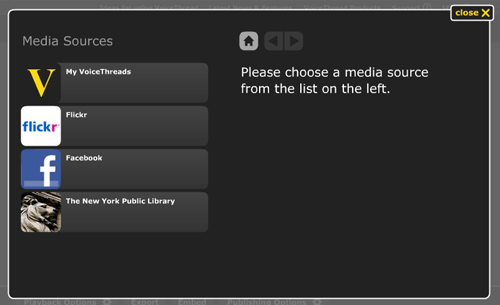 To import the slides from your own VoiceThreads into a new one, please follow these steps:
- Go to the Create/Edit mode of a VoiceThread.
- Click the button labeled 1. Upload from the menu on the left.
- Click the button labeled My VoiceThreads.
- Click on the link that says Click here to import your pages.
- Select a VoiceThread from the list to display the slides in that VoiceThread.
- Click on a slide you want to import. You can select multiple slides.
- Click the Import button at the top of the window.
How do I import media from Flickr into a VoiceThread?
You can search and import Creative Commons licensed images from Flickr without needing a Flickr account. All of the images available through Flickr via the Media Sources browser are from within the Creative Commons licensed collection at Flickr, and as always, link and attribution are automatically applied at the bottom of all imported images.
In the Edit mode of a VoiceThread, click 1. Upload in the menu on the left. When this menu opens, click on the button labeled Media Sources, select Flickr, and then click the link that says Click here to get started. This will open a page where you can select a category from the left or enter your own search terms in the search area at the top of the page.
To access your own photos from your Flickr account, select the top category and enter your Flickr username and password (if you're already signed into Flickr, this step will be done automatically). Once you have entered your username and password, you will be brought back to VoiceThread, where you'll be able to select from your Flickr collections and import individual images to your VoiceThread.
How do I import a file from a website into a VoiceThread?
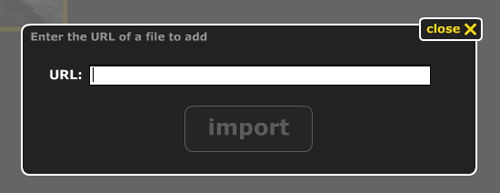
In the Edit mode of a VoiceThread, click 1. Upload in the menu on the left. When this menu opens, click on the button labeled URL. This will open a dialog that will allow you to paste a public link to any file on the Internet, which will then add the contents of that file to your VoiceThread. Please keep in mind that this must be a direct link to the image, video, or document. If it's not a direct link, you'll need to download the image or file to your computer, and then upload the file from your computer.
How can I upload a YouTube video into my VoiceThread?
VoiceThread does not currently support directly importing YouTube videos. YouTube share links are not direct links to a video's location and will not work in the URL option for VoiceThread. In order to use a YouTube video in VoiceThread, you must own that video so that you can upload it directly from your computer into the VoiceThread. Please keep in mind all fair-use and copyright laws when using online content with VoiceThread.
How do I title and describe a VoiceThread?
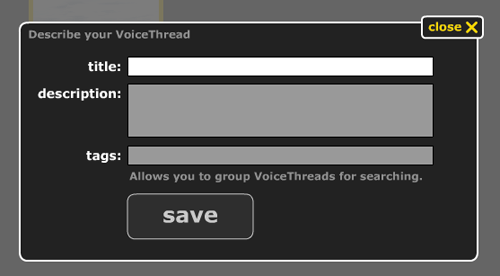
In the Edit mode of a VoiceThread, you will see a button labeled (Add a title and description) at the top-left on a VoiceThread that hasn't been titled and described. If you have previously added a title and/or description, a button labeled (edit) will appear to the right of the title/description, and clicking this will open a dialog to make changes to the title and description.
Editing
Editing a VoiceThread might involve deleting or changing the order of slides, adding a link to your slide, adding more slides, or even allowing for editors to share ownership of your VoiceThreads. To see an overview of navigating a VoiceThread, take a look at this tutorial: Introduction to VoiceThread.
Viewing
What are your choices when you're watching a VoiceThread? From commenting options, zooming in, learning when a VoiceThread was created, watching a VoiceThread for new comments, and even closing the VoiceThread to get back to your MyVoice page, these articles address the most common questions we get about looking at a VoiceThread. For an overview about using VoiceThread, take a look at this tutorial: Introduction to VoiceThread.
Commenting
How to Comment in Moodle
Doodling
When it comes to online presence, you want to help your viewers know precisely what you're talking about. VoiceThread's Doodler allows you to annotate any slide while you're recording a comment. Remember that a doodle is recorded along with your comment, so you must be making a comment in order to begin doodling.
In this section, you'll find answers to the most commonly asked questions related to doodling. Please take a look at this video to see Doodling in action:
What is a doodle?
A doodle is a non-destructive overlay annotation that is created as a part of a comment. To doodle on a VoiceThread, you'll need to follow these steps:
- Click on the Comment button
- Choose your commenting mode (note that doodling is not available for comment by telephone or uploaded comments).
- Once the recording process starts, place your mouse over the center portion of the VoiceThread, and click and drag your mouse cursor over the VoiceThread slide to draw on it.
- You can change the color of your Doodle by selecting from the color palette at the bottom-right of the VoiceThread.